
After installing CommBilling from the Shopify App Store, you will be guided through a quick setup workflow. This onboarding helps you configure the essential elements required to start using the app immediately.
Follow the steps below to complete your initial onboarding.
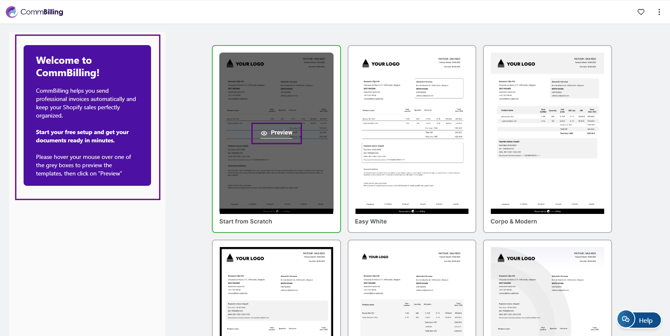
- Pre step: hover your mouse over the template you want, then click on “Preview”
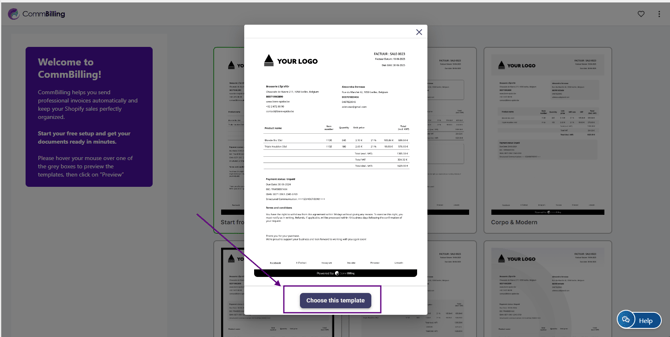
Click on "Choose this template"
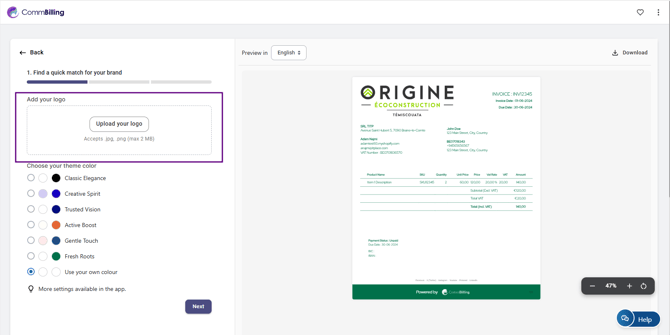
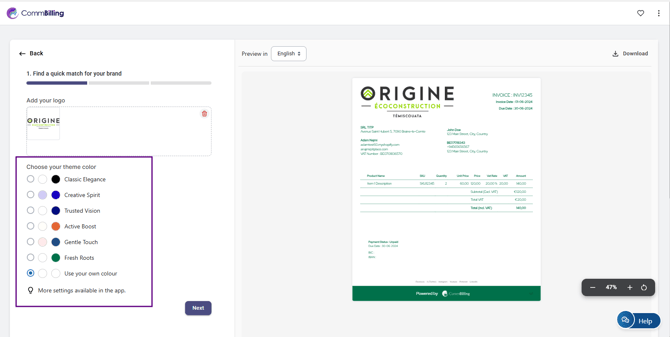
- Step 1: Upload your company logo, choose your theme color, and click "Next".
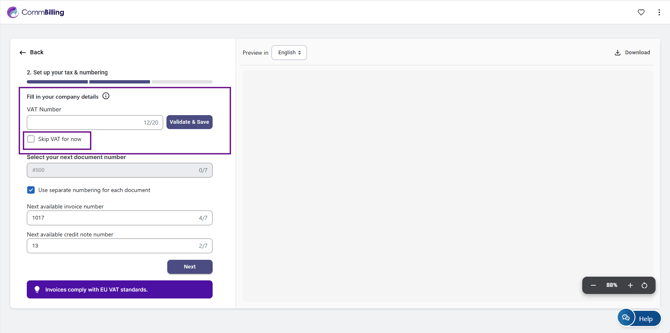
- Step 2: Enter your VAT number and click "Validate and Save" or select "Skip VAT for now" if you do not have one.
Choose whether you want the same numbering for all documents or separate numbering for invoices and credit notes, then click "Next".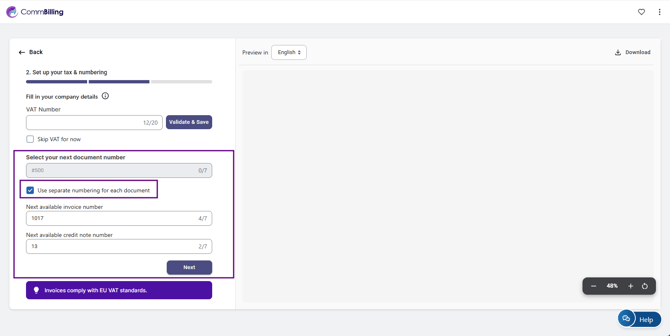
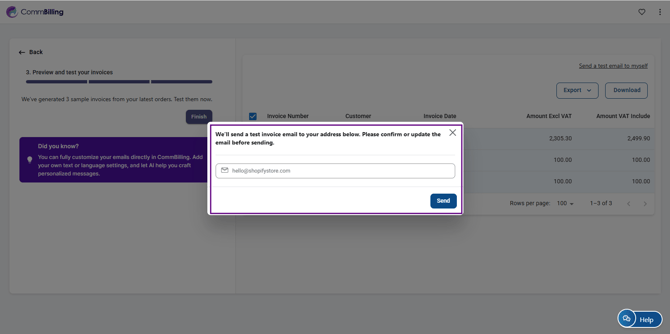
- Step 3: Click "Send a test email to myself", enter your email address, click Send, and check your inbox for the test email.
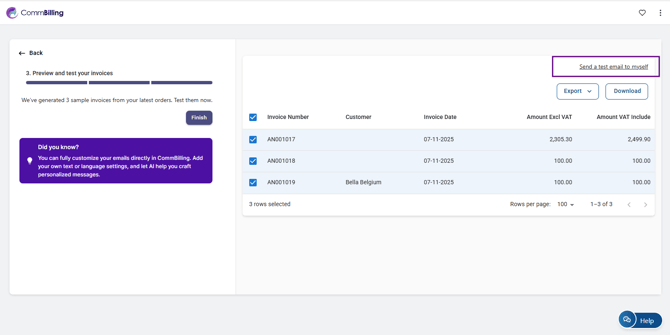
Click on "Download" to download the document examples, or on "Export", to download them in CSV format.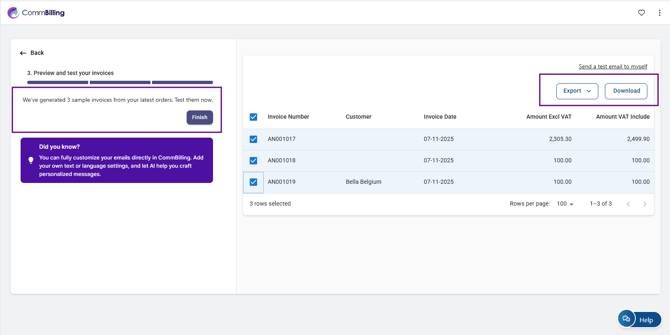
Click on "Finish" to complete the onboarding.
Next Step : Choosing Your Pricing Plan
- After the onboarding is complete, you will be redirected to the pricing plan page. Selecting a plan is required before you can start using CommBilling, and the seven day trial is available for both plans.
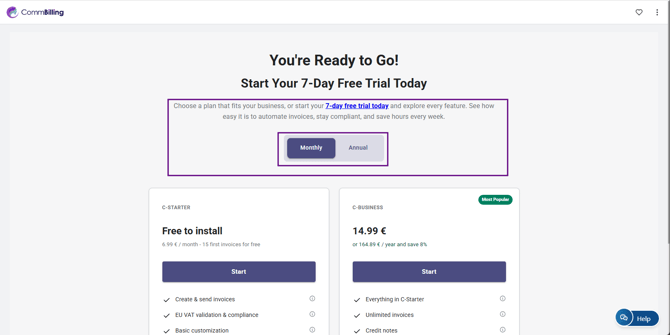
- Choose your preferred payment method, then click on "Approve"
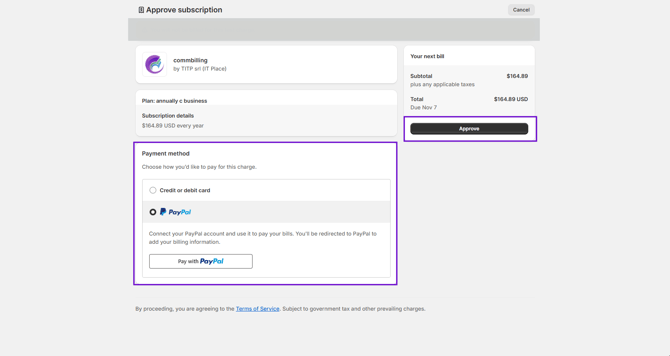
- After completing the payment, you will be redirected to the CommBilling Dashboard.
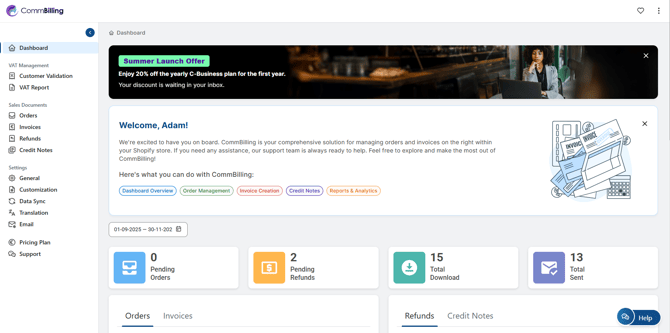
Your quick setup is now complete, and your billing app is ready for use. You can now start generating invoices, with the added benefit that CommBilling automatically generates three invoices for free as part of your onboarding experience. Further customization can be completed anytime in the Settings tab.